 Keet Support
Moving to the New Android APK Build
From Keet 4.23, the Android APK from GitHub and the Keet APK room installs as a separate app. Here's how to move your profile over and share Keet with someone nearby.
What changed in Keet 4.23?
Starting with Keet 4.23, the Android APK published on our GitHub and in the Keet APK room is a separate app from the one on the Google Play Store. It has its own app ID, which lets it include features that can't be offered through the Play Store, such as sharing Keet with someone nearby without an internet connection.
Because the app ID is new, Android treats the 4.23 APK as a new app, not as an update. It installs next to your existing Keet app and starts without a profile, so you need to move your profile over once.
This applies whether your current Keet app came from an older APK or from the Google Play Store. Either way, switching to the new APK means installing a new app and moving your profile over. If you want to keep using the Google Play Store version, nothing changes.
How do I move my profile to the new app?
Uninstalling the old app deletes the data it stored on your device. Don't uninstall it until everything has synced to the new app, and make sure you have backed up your profile first.
- Download and install the latest APK from our GitHub or the Keet APK room. You'll now have two Keet apps on your device.
- Link the new app to your profile, using the old app as your current device. Follow the steps in Link Devices.
- Wait until your groups and messages have appeared in the new app.
- Uninstall the old app.
Both apps are on the same phone, so you can't scan the QR code. Choose 'Use account link' instead and paste the profile link copied from the old app.
Please don't keep both versions installed long-term. Having both can cause unexpected behavior with deep links, because Android may not know which app should open a link, and it uses more battery.
How do I share Keet with someone nearby?
The new APK build can keep a copy of the Keet installer on your phone, so you can hand Keet straight to another Android user who has no internet connection or app store access.
Save a copy
Do this while you're still connected. You can't download a copy once you're offline.
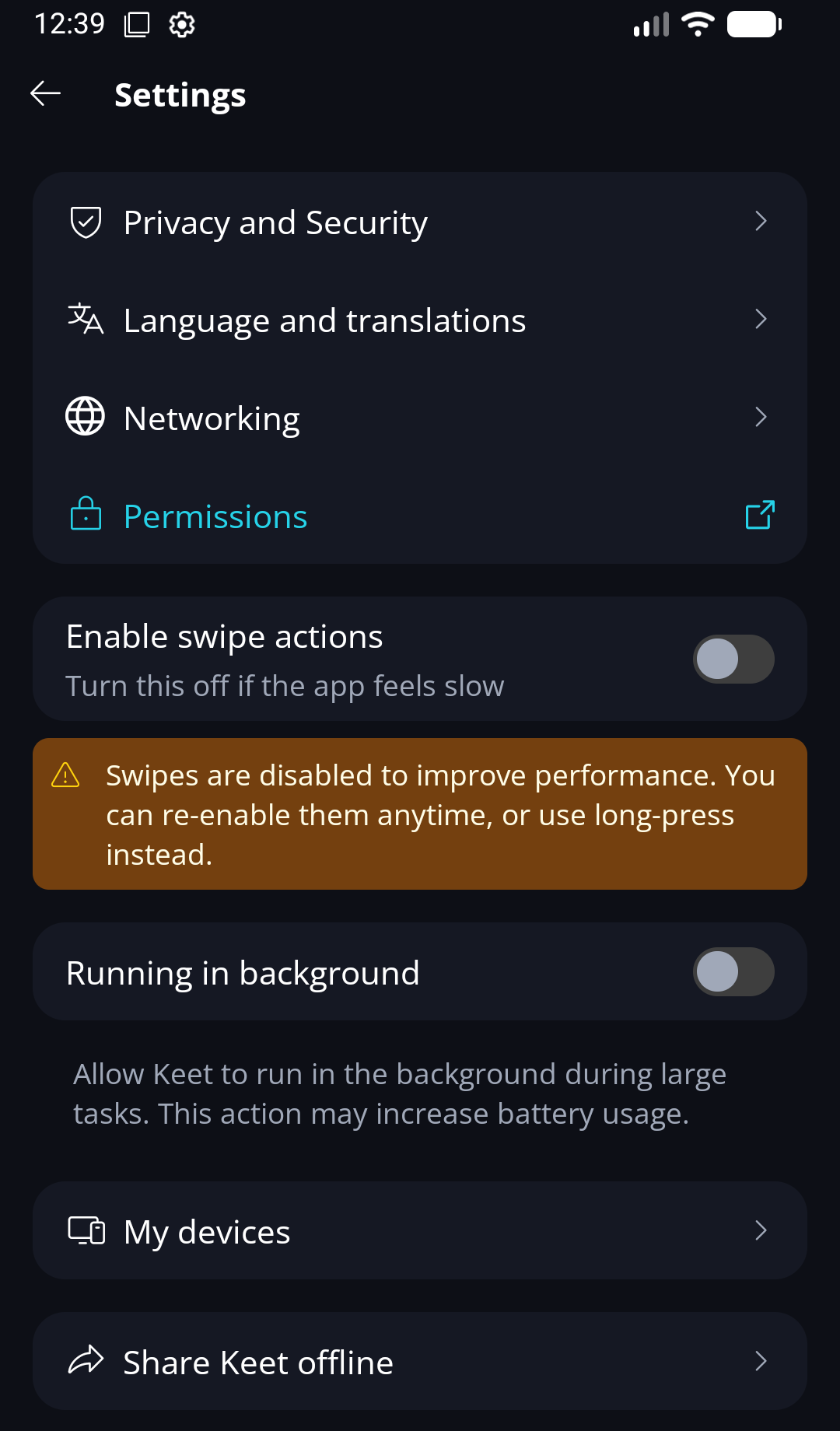
Go to 'Profile' / 'Settings' / 'Share Keet offline'.
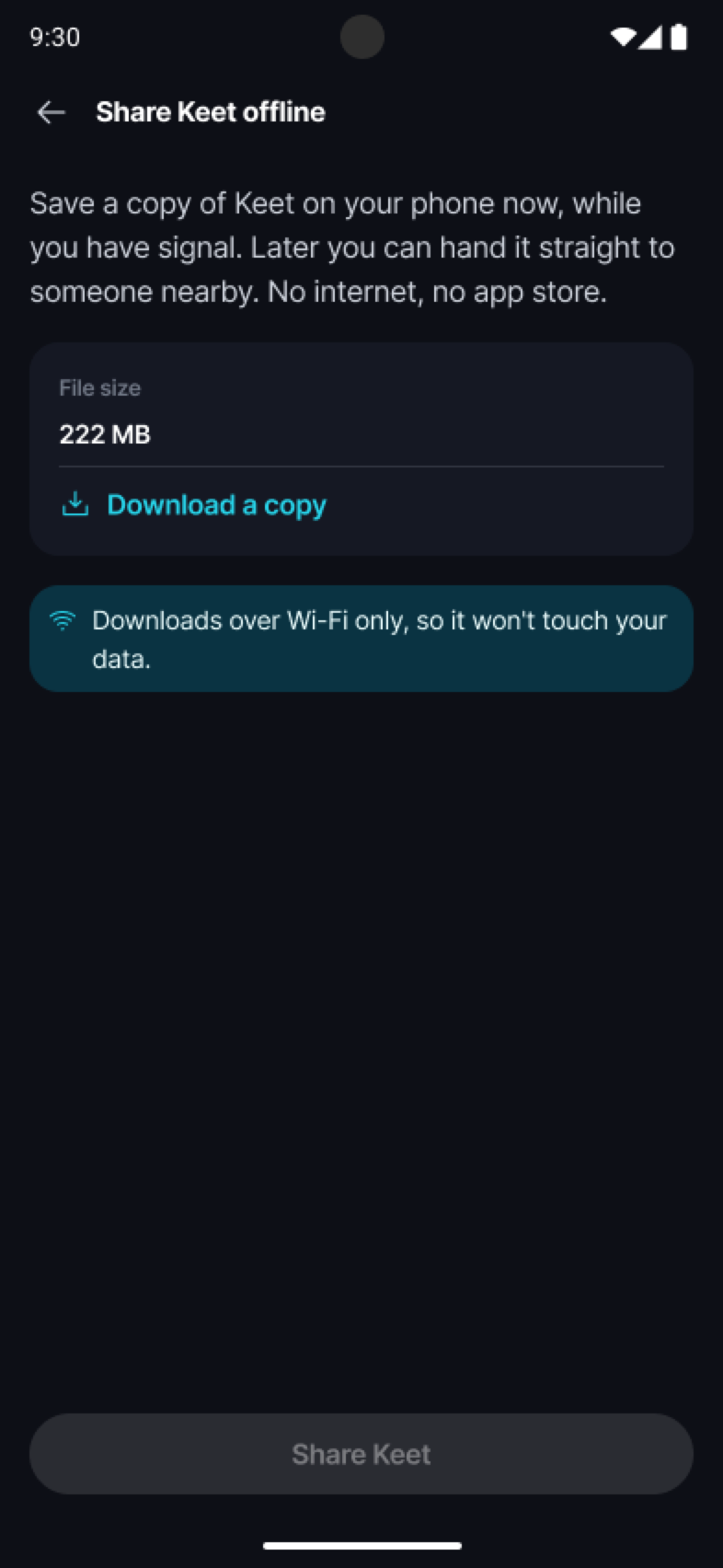
Select 'Download a copy'. The download runs over Wi-Fi, so it won't use your mobile data.
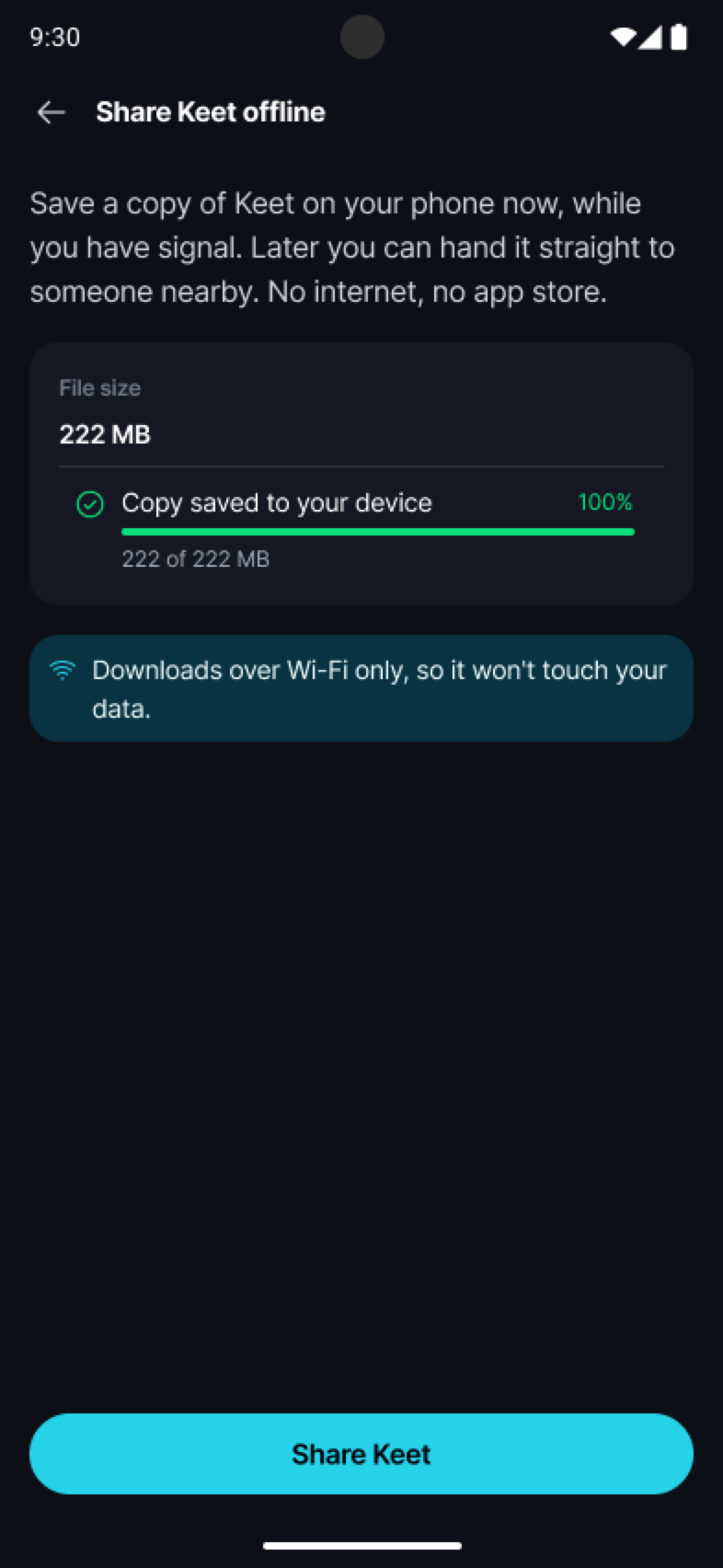
You can keep using Keet while it downloads. If your connection drops, the download picks up where it stopped.
When the copy is ready, the screen shows its version and file size, and confirms it's the 'Latest version'.
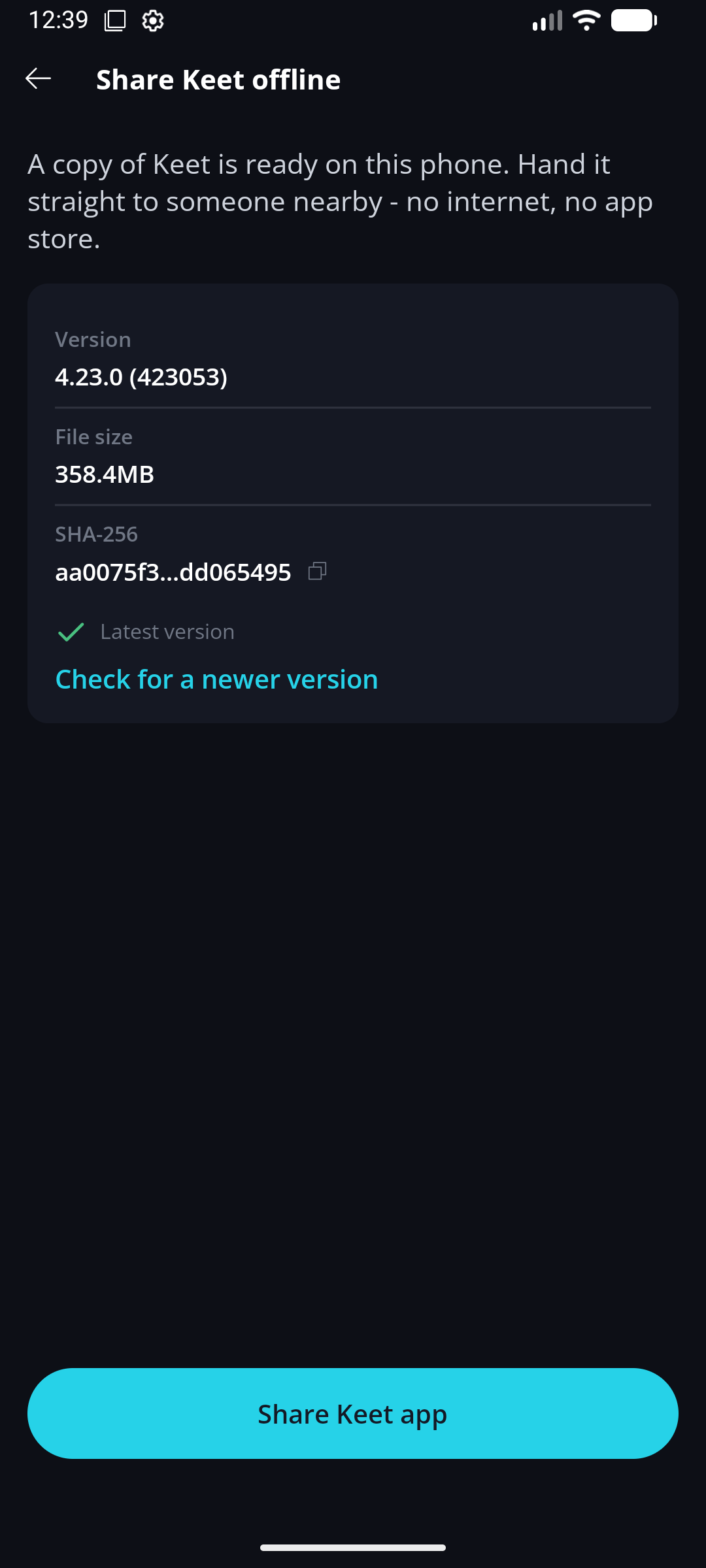
The copy is stored inside Keet, not in your Downloads folder. When Keet updates, it asks you to download the new version before you can share it again. You can also select 'Check for a newer version' at any time.
Share the copy
Go to 'Profile' / 'Settings' / 'Share Keet offline' and select 'Share Keet app'.
Android's share sheet opens with the Keet installer attached. Choose how to send it. If both phones support it, 'Quick Share' sends it directly to a phone next to you, with no internet connection needed.
On the other phone, accept the file and open it to install Keet. If Android asks for permission to install apps from this source, allow it to continue.
Once Keet is installed, the other person can set up their profile.
What if I already uninstalled the old app?
If Keet is still linked on another of your devices, link the new app from that device instead. Otherwise, you can restore your profile with your recovery phrase by following Recover a Profile.
Can I switch back to the Google Play Store version?
Yes. The two apps are independent, so switching in either direction works the same way: install the other app, link it to your profile, wait for it to sync, then uninstall the one you no longer want.
If you run into any trouble during the migration, please email us at support@holepunch.to and we'll help out.